Depth Stretching view
The Depth Stretching view displays a table summarizing the depth stretching operation: based on the selected markers, the names for the top and base for the zones they define are listed for both the target (blue) and source (green) wellbores. Also, the TDVSS for the markers is listed, again, both for the target and the source wellbore.
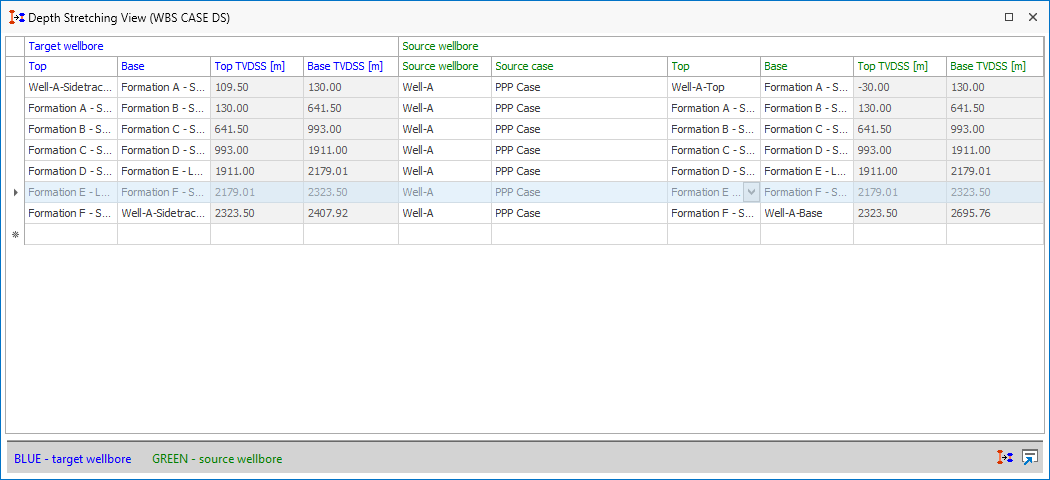
Depth Stretching view click to enlarge
Apart from the columns that are visible by default, you can add more columns yourself. To do so, right click anywhere in the header row and select Column /Band Chooser. This opens up a new dialog with additional options to add as columns to the view. To add a column, double click on the row of your choice.
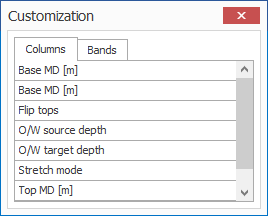
Dialog opening after selecting the Column Chooser option. It lists the columns that are currently not visible click to enlarge
Upon opening the Depth Stretching view, the columns listing the depth of the markers are read only (grayed out). If needed, you can enable these columns using the O/W target depth or O/W source depth options. This will add an extra column to the view where you can select which entries you wish to overwrite. Be aware that changing the depth of a marker in the source well does not automatically update the depth of the marker in the target well.
You can undo the changes you have made in the view by clicking on the Use default records icon located at the bottom right corner of the view. This will populate the table again with the initial well marker data.
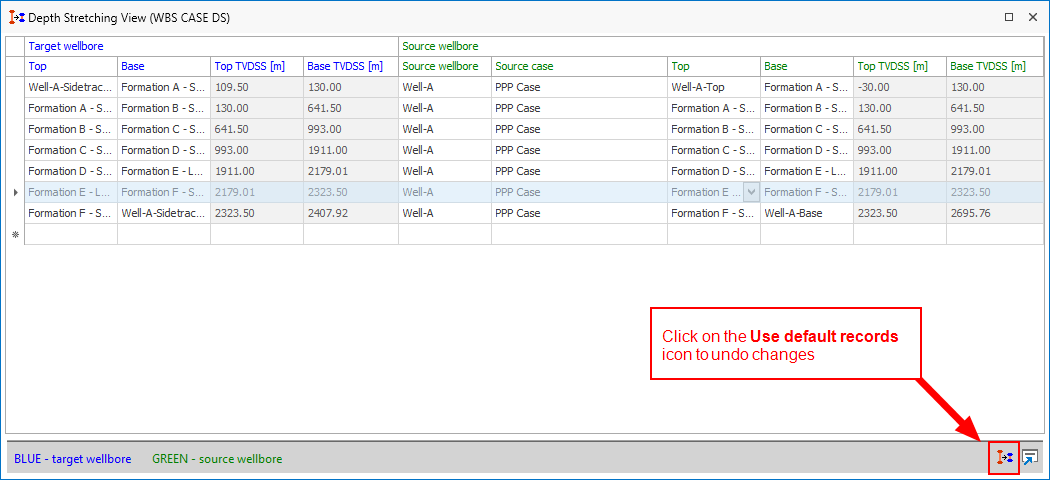
Use the 'Use default records' icon to undo any changes you have made in the table. click to enlarge
Click on the Open in Workflow icon  located at the bottom right corner of the view to open the Depth Stretching form.